The previous article covered creating category list pages with Views.
" Table of Contents "
- Top --- This section summarizes the process of building and implementing blocks using the View feature—a hallmark of Drupal that allows for the versatile handling and flexible arrangement of information.
- #01 Views Used on This Site --- This section summarizes examples of how blocks created using the Views module are actually used.
- #02 Configuration Examples --- This section summarizes the settings required to create blocks using the Views module.
- #03 Additional Notes on Configuration --- This section provides additional information on the differences between “pages” and “blocks” created with Views, along with examples of their use.
Clicking the numbers in the simple navigation bar at the bottom of the page will jump to that part of the article. Feel free to use it when re-reading.
This one covers creating category blocks that can be placed on any page — the concrete examples being the latest articles on the top page and the related articles at the bottom of each article.
To recap Views: it's the feature that lists and displays published content — articles, pages, and so on — filtered by specified conditions.
The previous article covered creating category list pages for the navigation menu.
Articles on Drupal and Web > All articles
The feature that creates those category list pages is Views. Views can create not just pages but also blocks — placing a created block on a specified page lets you surface any list of articles or pages freely anywhere on the site.
This article covers creating a related articles block to display within article pages, using Views.
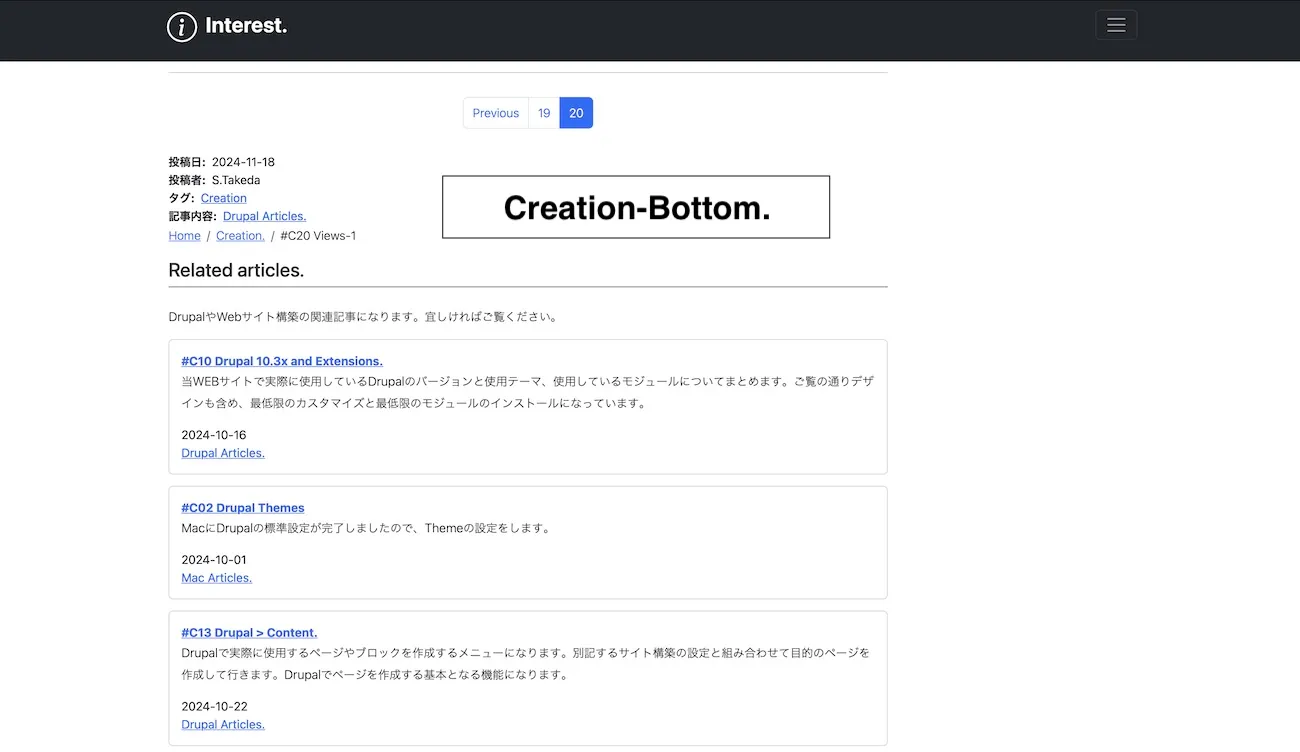
Example of related articles display
Introduction.
This article walks through the related articles block placed at the bottom of each article page as a concrete example. Related articles means placing links to other relevant articles — for instance, surfacing other Drupal-related articles within a Drupal article.
The site is still new with relatively few articles, so related articles are organized into two broad themes.
- Articles on Drupal and Web > Creation
- Life Style articles > Life Style
Creation — which collects Drupal, AWS, and related articles — uses the Creation content type for all those articles. A taxonomy term also called Creation is applied to each one, grouping them under that term. Using that Creation term to generate a category list page as described in the previous article is exactly what the Views page generation feature does.
Listing other Creation-category articles within a Drupal article — both created with the Creation content type — makes it easier for readers to find related content.
A block listing other Creation articles is created and placed within articles as related content.
This related articles block is generated using Views.
The related articles block is configured as follows.
Choose whether to use a page or a block
- Create a block with specified conditions // Select Create a block
Specified extraction conditions
- Taxonomy // Vocabulary > Tags // Term > Cration.
Display format
- Grid
Information displayed: fields
- Title
- Article body
- Taxonomy
- Publication date/time
Display order
- Random
Number of items
- 3 items
- No more link
At the bottom of Creaion articles — which cover Drupal and web development topics — other related Drupal and web development articles are listed. Since it's placed at the bottom of article pages, it shows 3 items in random order.
1. Views in Use on This Site
The related articles block created with Views is used as follows.
Related articles placed at the end of pages by content type > Views block creation feature
- Related articles. at the bottom of each article > Also displayed at the bottom of this article. / Displayed on all Creation. articles.
Not covered here, but the related articles block is currently displayed across four content types.
- Articles on Drupal and Web. // Displays the Creation-Bottom. block created in this article at the bottom of each page
- Life Style articles. // Displays the separately created Life Style-Bottom. block at the bottom of each page
- Web Creation Article. // Displays the separately created En-Creation-Bottom. block at the bottom of each page
- Life Style Article. // Displays the separately created En-Life Style-Bottom. block at the bottom of each page
This article covers how Articles on Drupal and Web. — the Creation-Bottom. block — is configured in Views.
The process is:
- Create the block
- Determine extraction conditions and post-extraction display
- Format the display and configure it to be callable as a block
- Additional settings
- Review configuration
1-1. Block.
Creating the related articles block to display within articles using Views.
Navigate to Home > Administration > Structure > Views.
A list of Views is displayed. From this top screen you can create new views and edit, enable/disable, duplicate, or delete existing ones.
Click + Add view to create a new view.
Block Setting.
The Home > Administration > Structure > Views > Add view screen appears.
Basic view information
View name: Administrative name
Description:
View settings // Default settings are fine.
Show: Content   Type: Specify content type   Tagged with: Empty   Sort by: Newest first
Page settings
Create a page: Checked // Can be configured later, either is fine
Block settings
Create a block: Checked // Can be configured later, either is fine // Select this since we're creating a block this time
Enter the required information and click Save and edit to open the Views configuration screen.
Configuration for the created view is done at Home > Administration > Structure > Views > View.
2. Configuration Example
Let's look at the Views configuration for the Drupal and web-related articles on this site.
Open the Views configuration screen.
Home > Administration > Structure > Views > View > Creation Bottom (Content)
Since the configuration is organized into purpose-based sections, I'll explain it using the same five blocks as before.
- Top Block
- Left Block
- Center Block
- Right Block
- Footer Block
The actual configured settings are summarized below.
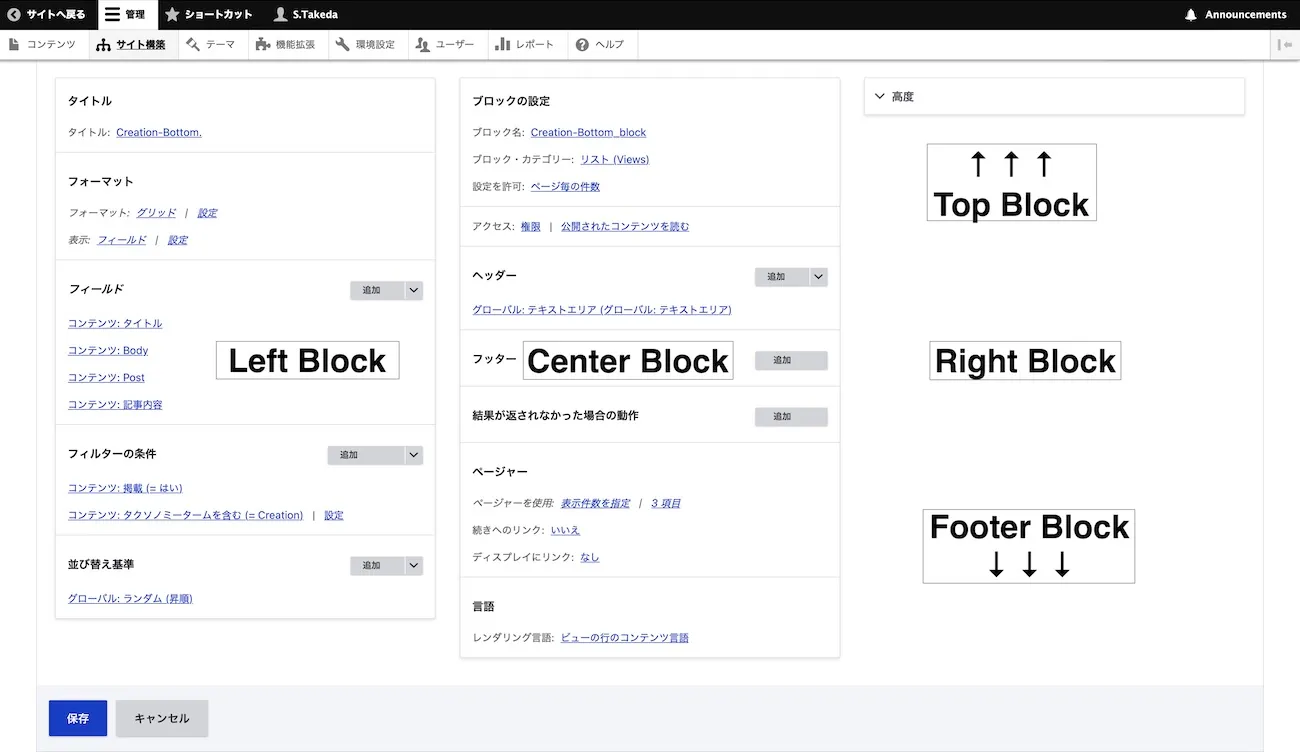
Views configuration screen
2-1. Top Block.
Add pages or blocks and configure translation settings as needed.
The block is named Creation-Bottom. and created as a Content type.
Top Block Setting.
Creation-Bottom.  (Content)
Edit / Translate view
Display
Block + Add ----- Edit view name/description >
Display name: Block  ----- Duplicate Block >
2-2. Left Block.
Most of the key configuration is done in this left block: setting the title and display format, selecting fields, filtering content by taxonomy and specified terms, and setting the sort order.
The display format is set to grid. CSS classes are applied to the grid — stylesheet details will be covered in a separate article.
Display fields are title, body (summary), and all taxonomy terms. Filter conditions specify published content and the taxonomy term Creation., with articles displayed in random order.
Left Block Setting.
Title
Title: Creation-Bottom. // Title set to "Creation-Bottom.".
Format
Format: Grid | Settings // Display format set to grid.
Show: Fields | Settings // Fields displayed in the grid are as follows.
Fields ----- Add // Fields displayed in the grid above
Content: Title
Content: Body (article content)
Content: Post (publication date)
Content: All taxonomy terms
Filter criteria ----- Add
Content: Published (= Yes) // Generates the content list. Displays published/active content.
Content: Contains taxonomy term (= Creation) | Settings // Displays only content containing the Creation term configured in taxonomy.
Sort criteria ----- Add
Global: Random (ascending) // Selects articles for the list randomly.
2-3. Center block.
Block name, header, footer, and list display conditions are configured here.
Since this is a block, the pager is set to 3 items.
Center Block Setting.
Block settings
Block name: Creation-Bottom_block
Block category: Lists (Views)
Allow settings: Items per page
Access: Permission | View published content // Matches content publication permissions since it's public.
Header ----- Add
Global: Text area (Global: Text area) // A header doubling as a description is configured.
> Related articles.
> These are articles related to Drupal and web development. Feel free to take a look.
Footer ----- Add // Not needed for now, but will be used if supplementary notes become necessary.
No results behavior ----- Add // Left at default.
Pager
Use pager: Mini | Mini pager, 3 items per page // Set to 3 since these are related articles placed at the bottom of article pages.
More link: No // Not used since full pagination is in place and page numbers are displayed.
Language
Rendering language: Content language of view row // This page is set to Japanese.
2-4. Right Block.
Settings not available in the basic configuration are handled here. // No settings configured this time.
Right Block Setting.
^ Advanced // Left at default.
Relationships ----- Add
Contextual filters ----- Add
Exposed form
Expose form in block: No
Exposed form style: Basic | Settings
Other
Machine name: page_1
Administrative comment: None
Use AJAX: No
Hide attachments in summary: No
Contextual links: Shown
Use aggregation: No
Query settings: Settings
Caching: Tag based
CSS class: None
2-5. Footer Block.
Save configured settings and preview the results here.
Footer Block Setting.
Save / Cancel // Saves the configuration.
Preview ----- Auto preview // Changing settings shows a preview below.
Preview with contextual filters: // Preview display conditions
Update preview // When settings are changed, update and check the preview displayed below.
Title -----  Creation-Bottom. // The configured title
Path ----- This display has no path. // No path since this is a block, not a page.
// Preview content appears below.
Title
> Creation-Bottom.
Header // Header configured in Center Block
> Related articles.
> These are articles related to Drupal and web development. Feel free to take a look.
Content
> The configured list displayed randomly
That covers the full configuration.
3. Notes on the Configuration
The configuration is largely the same as in the previous article, #C20 Drupal Views Part 1 — Pages.
Top Block handles selecting or adding pages and blocks; Left Block determines extraction conditions and display; Center Block shapes the output; Right Block handles additional settings; and Footer Block is for reviewing the configuration.
Organizing the Views configuration process:
- Create the block > Top Block settings
- Determine extraction conditions and post-extraction display > Left Block settings
- Format the block for display > Center Block settings
- Additional settings > Right Block settings // Not configured this time.
- Review configuration > Footer Block
The difference from a category list page is that a category list page stands alone as a single page, whereas the related articles block created here can be placed on any article or page as needed.
As briefly mentioned in the content type article, blocks don't have URLs — a created block is treated as an entity. The Block Layout feature is used to configure where that block is placed.
In Block Layout, specifying a placement section triggers autocomplete to call up the created block. The Creation-Bottom. block created here appears in that list — selecting it and configuring the section display makes the related articles appear on the specified articles. Block Layout configuration will be covered in a separate article since this one is already getting long.
- What to list and display > Content > Drupal-related articles
- Extraction condition > Taxonomy > Term > Creation.
- All Drupal-related articles have the Creation. term set as a tag.
These three conditions are used to create the related articles block.
This article documents the Views configuration example for creating a related articles block. The settings may look numerous but the logic is simple.
- Create articles using the Creation content type for Drupal and web-related articles
- Place the Creation term — configured in the Tags vocabulary of the Creation content type — in each article
- Use Views to list pages tagged with Creation and generate a block
- Configure the article and placement location in Block Layout
Block Layout configuration isn't covered in this article, but placing the created related articles block in the relevant articles via Block Layout is what makes it appear within those articles.
The next article will cover Block Layout.
Conclude.
This wraps up the Views feature — the page and block creation used to categorize articles and display them as lists. Pages and blocks are covered separately across #C20 and #C21. Both articles use real configuration examples from this site, though they remain overview-level and don't cover practical details like display styling.
The need to understand Drupal's concepts and rules comes up throughout these articles — and at this point, what I'm writing is largely that: content aimed at building that understanding.
The series has moved through Content > Structure > Taxonomy > Views. Add Block Layout to that and you have the foundations for building a Drupal site with categorized articles. Once these concepts and rules are covered in full, I'm hoping to explain more practical site-building in concrete terms.
An overview of Block Layout, which lets you freely arrange and place the main navigation menu, side menus, footers, and Views-created blocks anywhere on your site.